T&F PDF Specifications
The specifications described here should be used to create all article PDF files other than scanned PDF files and initial tagging PDF files.
PDF metadata
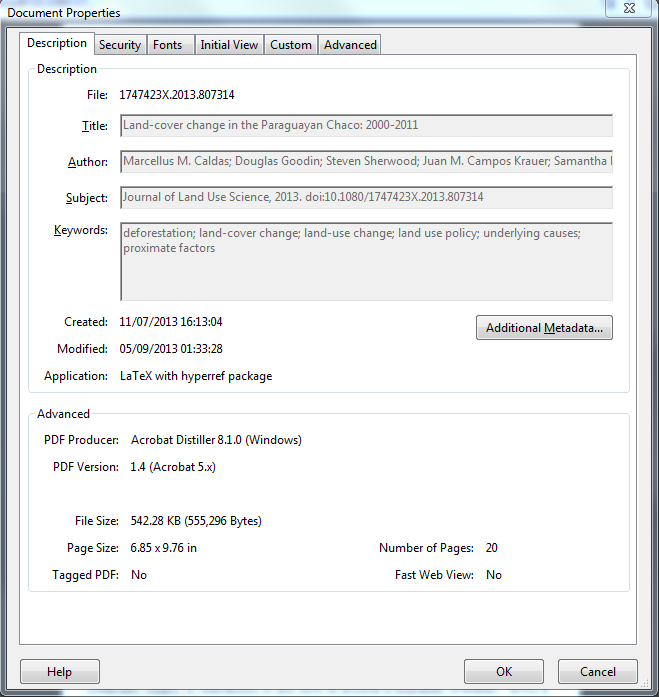
We expect all Online PDFs to be tagged with the basic metadata listed below. The metadata should be derived from the article XML and added to the document properties description tab. Metadata tagging is only required for final online PDF (not required for proof stages).
| Property | Value derived from article XML |
|---|---|
| Title: | <article-title>.<article-subtitle> |
| Author: | <contrib-group>* |
| Subject: | <journal-title>, <pub-date date-type="control">year.** doi:<article-id pub-id-type="doi"> |
| Keywords: | <kwd-group>* |
|
* List Authors in <given-names> <surname> order separated by semi-colon ** Use the Year only from the control date *** Multiple keywords should be separated by semi-colon |
|
PDF metadata - Example screen shot
Additional XMP metadata
In addition to the basic metadata requirements we also require each online PDF to include the following additional metadata based on the Dublin Core and PRISM metadata standards:
| Property | Value derived from article XML |
|---|---|
| dc:format | application/pdf |
| dc:identifier | <article-id pub-id-type="doi"> |
| dc:title | <article-title>.<article-subtitle> |
| dc:creator | <contrib-group> |
| dc:publisher | <publisher-name> |
| dc:description | <journal-title>, <pub-date date-type="control">year.* doi:<article-id pub-id-type="doi"> |
| dc:subject | <kwd-group> |
| dc:language | @xml:lang |
| * Use the Year only within the control date | |
| Property | Value derived from article XML |
|---|---|
| prism:aggregationType | Journal* |
| prism:publicationName | <journal-title> |
| prism:copyright | <copyright-statement> |
| prism:issn | <issn pub-type="ppub"> |
| prism:eIssn | <issn pub-type="epub"> |
| prism:volume | <volume> |
| prism:number | <issue> |
| prism:issueName | <issue-title> |
| prism:startingPage | <fpage> |
| prism:endingPage | <lpage> |
| prism:doi | <article-id pub-id-type="doi"> |
| prism:url | http://dx.doi.org/<article-id pub-id-type="doi"> |
| * Use the word "Journal" to populate this element | |
Document Properties
- Document Properties>Description>Reading Options>Language
-
The PDF language should be set based on the main xml:lang attribute of the article XML file. Acrobat includes 34 pre-set language selections. If you need to specify a language that is not on the list, you must use the ISO 639 code for the language, not its name.
- Fast Web View
-
All PDFs (from first proofs onwards) should have Fast Web View enabled.
In-article hyperlinks
Where present, the following internal hyperlinks should be embedded in the online PDF. The default colour for hyperlinks should be set to blue ( R0 G0 B50) unless otherwise instructed. The document layout and zoom properties should remain constant when navigating between links (eg. Following a link should not zoom in on the target). Hyperlinks should be included from First proof PDF onwards and then throughout subsequent stages.
| Hyperlink in text | Destination type | Destination location |
|---|---|---|
| Affiliation markers | Internal PDF link | Affiliation in PDF |
| Reference citation* | Internal PDF link | Reference in list |
| Table reference | Internal PDF link | Table |
| Figure reference | Internal PDF link | Figure |
| Footnote reference** | Internal PDF link | Footnote |
| Section reference | Internal PDF link | Section start |
| URL’s within text | External link | URL |
| DOI’s within text | External link | http://dx.doi.org/<pub-id> |
|
* Journals that follow the MLA reference style shouldn't include reference citation hyperlinks. ** Not required for table footnotes |
||
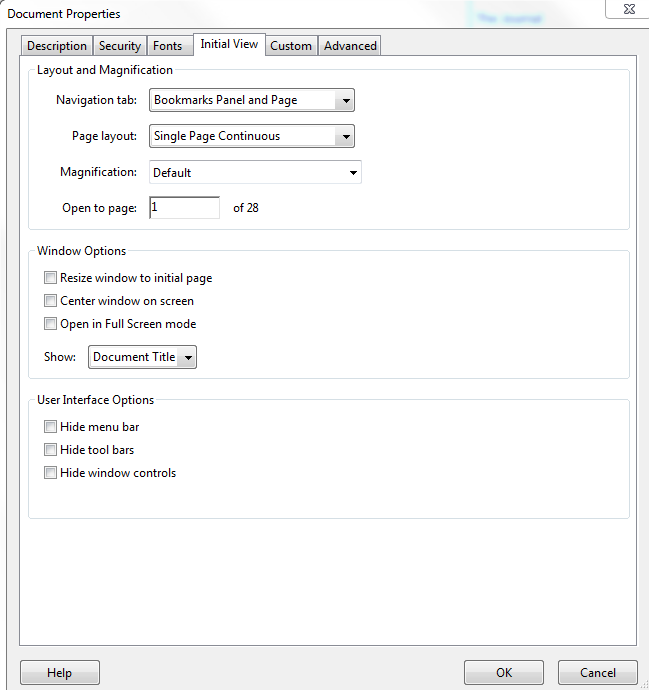
Document properties: Initial View
The followings settings for Initial View should be applied to all online PDFs unless otherwise instructed.
| Navigation tab | Bookmarks Panel and Page |
| Page layout | Single Page Continuous |
| Magnification | Fit Width |
| Show | Document Title |
| Open to page | First page of document |
Initial View Settings - Example screen shot
PDF Job Options
The following Job Options settings should be used depending on the type of file being requested.
| Compatibility | PDF 1.4 |
| Greyscale & colour image resolution | 150 ppi* |
| Downsampling method | Bicubic |
| JPEG Quality | High |
| Bitmap image resolution | 600 ppi* |
| Marks and bleeds | Off |
| Output colour profile | Convert to Adobe RGB (1998) |
| Fonts | Subset below 100% |
| Watermark | "Proof Only" on all pages (watermark in background) |
| Marginal Line Numbers | Required (ensure they line up with text) |
| Compatibility | Acrobat 4 (PDF 1.3) |
| Greyscale & colour image resolution | 150 ppi* |
| Downsampling method | Bicubic |
| JPEG Quality | High |
| Bitmap image resolution | 600 ppi* |
| Marks and bleeds | Off |
| Output colour profile | Convert to Adobe RGB (1998) |
| Fonts | Subset below 100% |
* If a custom arrangement for online image/figure resolution has been made then this instruction can be ignored
| Compatibility | Acrobat 4 (PDF 1.3) |
| Greyscale & colour image resolution | 300 ppi |
| Downsampling method | Bicubic |
| JPEG Quality | Maximum |
| Bitmap image resolution | 1200 ppi |
| Marks and bleeds | On |
| Output colour profile | ISO coated v2 |
| Fonts | Subset below 100% |
Bookmark Tagging
Each section with a level 1, 2 or 3 heading plus all abstract, notes, acknowledgements and reference sections must be bookmarked within the online PDF in the order in which they appear. All bookmarks must be nested correctly (eg. Level 2 bookmarks nested within level 1 etc).
| Bookmark Type | Text to Display or XML element |
|---|---|
| Abstract | Abstract |
| Level 1 Section (repeatable) | <sec disp-level="1"><title> |
| Level 2 Section (repeatable + nested within level 1) | <sec disp-level="2"><title> |
| Level 3 Section (repeatable + nested within level 2) | <sec disp-level="3"><title> |
| Notes | <notes><title> |
| References | <ref-list><title> |
| Acknowledgments | <ack><title> |
| Appendix | <app> |
Bookmarks - Example screen shot

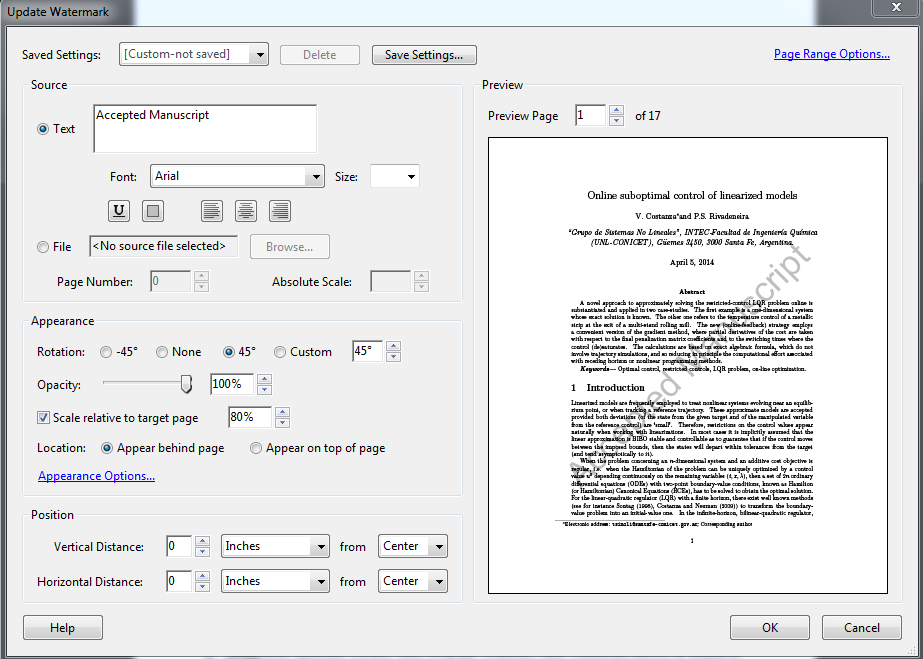
AMO Watermarking
All Accepted Manuscript PDFs should be watermarked using the following Acrobat configurations:
- Text: "Accepted Manuscript"
- Font: Ariel
- Colour: Grey (R192 G192 B 192, Hue: 160, Sat: 0, Lum: 181)
- 45 degree angle
- 100% opacity (no transparency)
- 80% scale relative to target page
- Appear behind page
AMO Watermark settings - Example screen shot